DevParser documentation
Every screen, every action, and the answers to the questions we get asked most.
Last updated 10 August 2026
Getting started
/register → /dashboard
Create an account, confirm your email, choose a plan, and invite the people who will review candidates. Everything after this section assumes you are signed in.

Screenshots are taken from a demo account — your numbers will differ.
Step by step
- Sign up at /register with your work email, or use Microsoft SSO if your company has it enabled.
- Confirm your email from the message we send. Unconfirmed accounts cannot send assessments.
- Pick a plan. Every paid plan starts with a 14-day free trial and asks for no card up front.
- Invite your team from Settings → Team so reviewers see the same candidates.
- Send your first assessment with the Create Assessment button at the top right of the dashboard.
What you can do here
Quick Assess
The fastest path. Paste a candidate email, pick a language and seniority, and we generate the task and send the invite in one step.
New Assessment
The full wizard. Choose an existing coding task or a template, set the deadline, and pick who gets invited.
Import from ATS
Pull candidates straight out of a connected ATS instead of typing them in.
Add Candidate Manually
Create a candidate record from a name and email without sending anything yet.
Dashboard overview
/dashboard
The landing screen after sign-in. It answers "what needs me today" before it shows you any charts.
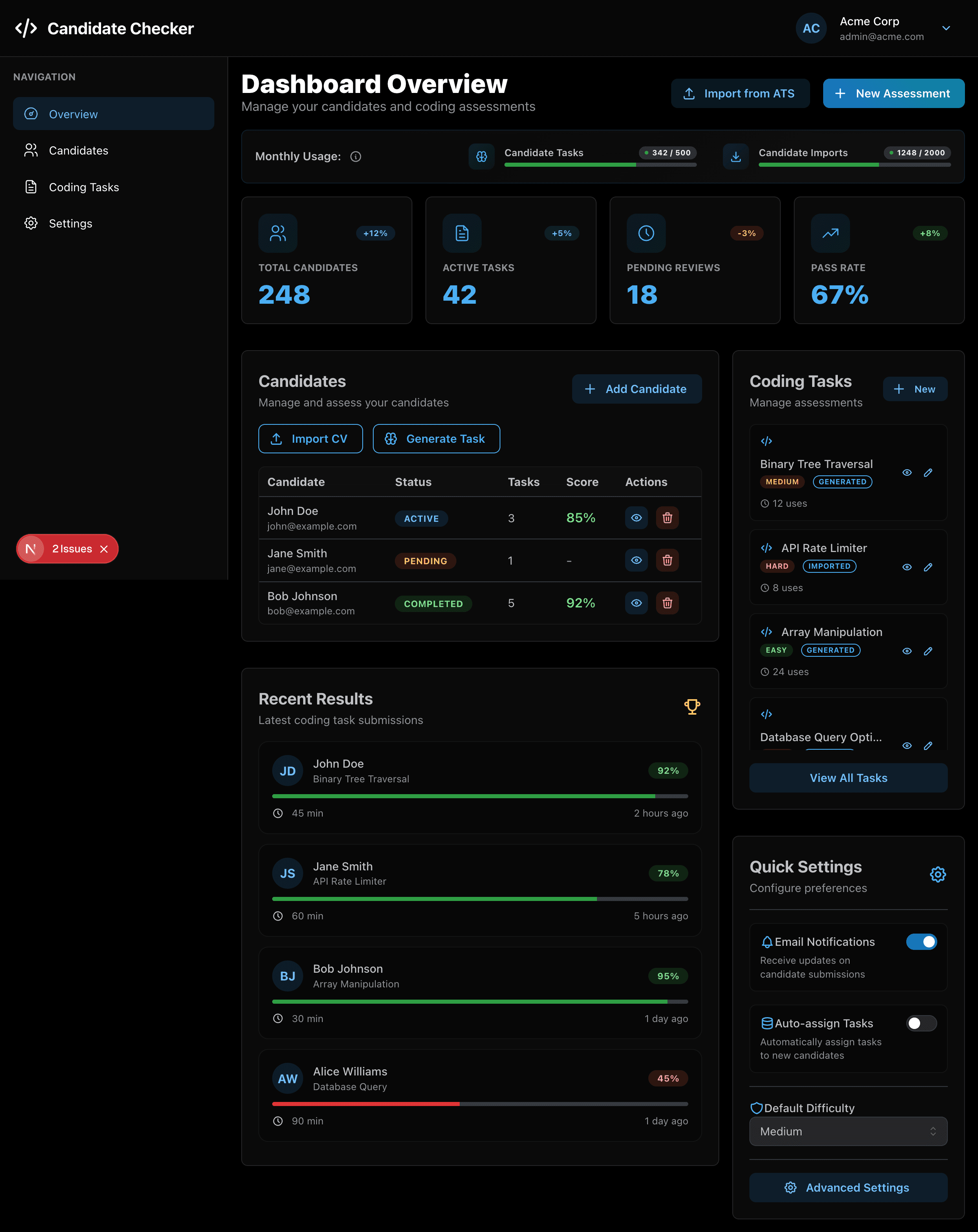
Screenshots are taken from a demo account — your numbers will differ.
What you can do here
Monthly usage
Live counters for AI task generations, CV parses, assessments sent this month and team seats, each against your plan's limit. Bars turn orange as a limit approaches and red once it is spent.
Needs your attention
Shortcuts straight to pending reviews, assessments still in progress, and the full candidate list.
Metrics
Total candidates, active tasks, pending reviews and pass rate for your company.
Customise metrics
The gear icon beside METRICS chooses which metric cards appear and in what order.
Activity trend & assessment status
A 14-day activity chart plus a breakdown of where your assessments currently sit.
Create Assessment
Opens the four ways to start an assessment described in Getting started.
Upgrade plan
Jumps to billing when you want more capacity than your current plan allows.
Candidates
/dashboard/candidates
Everyone you have screened or plan to screen. Search it, filter it, and act on a single row.
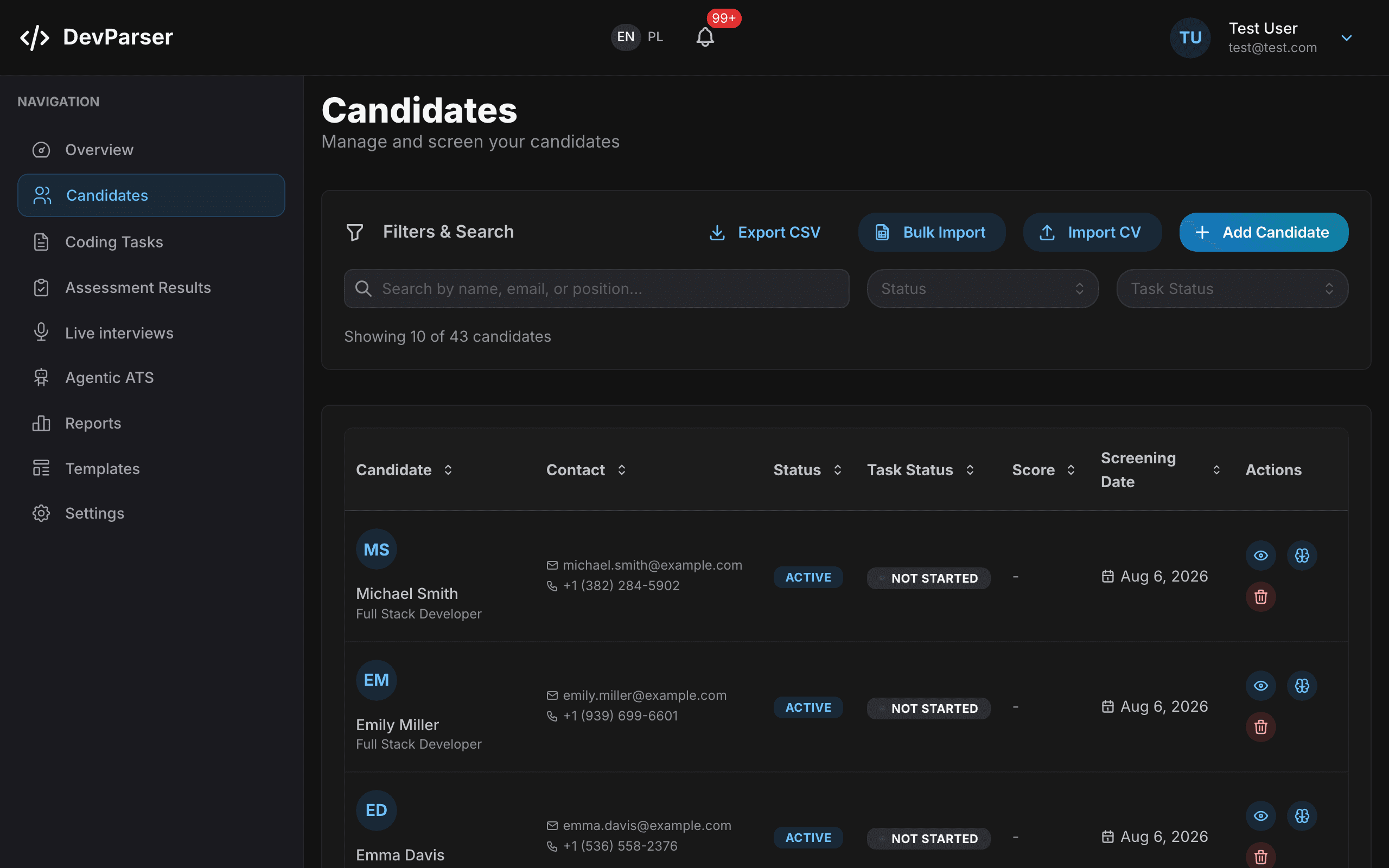
Screenshots are taken from a demo account — your numbers will differ.
What you can do here
Add Candidate
Create a candidate from a name, email and position by hand.
Import CV
Upload one CV as PDF, DOCX or TXT. We parse it into a candidate record and pull out skills and experience.
Bulk Import
Upload a batch of CVs in one go instead of one at a time.
Export CSV
Download the current filtered list as a spreadsheet.
Search and filters
Free-text search across name, email and position, plus filters for Status and Task Status.
Sort
Every column header with arrows sorts the table — candidate, contact, status, task status, score and screening date.
View (eye icon)
Opens the candidate's full record: parsed CV, screening result and assessment history.
AI screen (brain icon)
Runs AI screening against the candidate's CV and returns a fit score with a written summary.
Delete (bin icon)
Removes the candidate and their data. This cannot be undone.
Coding tasks
/dashboard/tasks
Your question bank. A task is the actual coding problem a candidate is asked to solve.

Screenshots are taken from a demo account — your numbers will differ.
What you can do here
Create Task
Three ways in, on three tabs of the same dialog: AI Generation builds a task from a language, framework, seniority and difficulty; Manual Creation lets you write one yourself; Import Existing takes a take-home you already use. AI generations count against your monthly limit.
Import Existing (tab)
Paste the take-home you already send candidates — a README, a brief, a page out of a doc — and DevParser extracts the title, description, requirements, test cases and starter code. It extracts and never invents: anything the brief did not contain comes back empty, and a note tells you what is missing. Nothing is saved until you review the fields and press Create, so an import you dislike costs you nothing. Imports do not consume an AI task generation, but they do need a free slot in your task limit.
Filters
Narrow the bank by Language, Framework, Seniority and Difficulty, or search the text of the tasks.
Preview (eye icon)
Read the task exactly as a candidate will see it.
Edit (pencil icon)
Change the prompt, starter code, tests or metadata.
Delete (bin icon)
Removes the task. Assessments already sent with it keep working.
Used and Avg Score
How often a task has been sent and how candidates score on it — use these to retire questions that are too easy or too hard.
Assessment results
/dashboard/assessments
Every assessment you have sent and where each one currently stands.
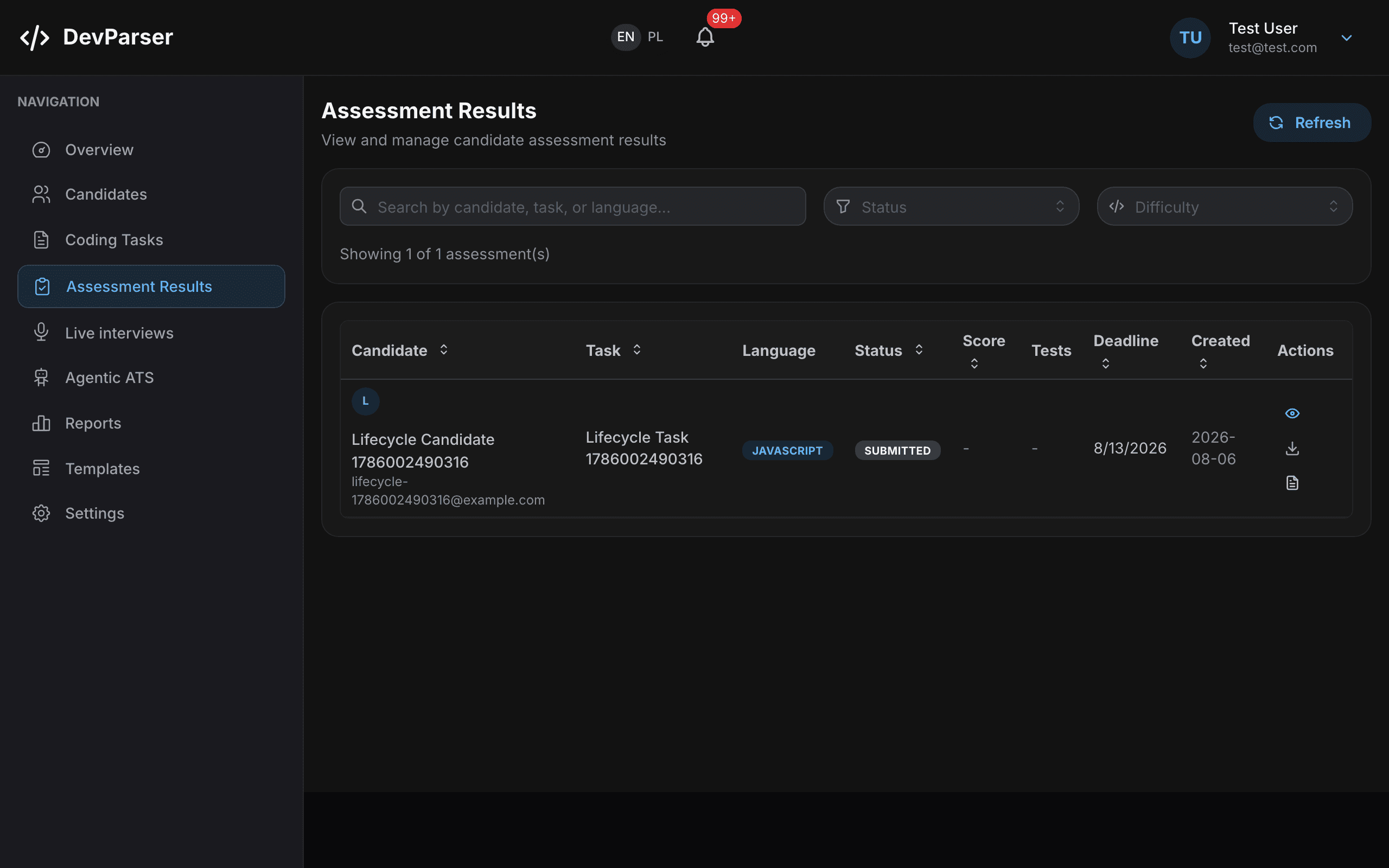
Screenshots are taken from a demo account — your numbers will differ.
What you can do here
Search and filters
Search by candidate, task or language, and filter by Status or Difficulty.
Statuses
An assessment moves through Pending, In Progress, Submitted and Completed. It can also end as Failed or Expired if the deadline passes untouched.
View (eye icon)
Opens the full review: code, test run, AI evaluation, and integrity evidence (process, similarity, search, capped AI-pattern).
Download (arrow icon)
Downloads the candidate's submission.
Report (document icon)
Opens the shareable screening report on an unguessable link you can forward to a hiring manager.
Refresh
Pulls the latest state. Results also arrive live over the notification channel while you have the page open.
Submission integrity (anti-cheat)
/dashboard/assessments/<id>/review
Anti-cheat is an evidence pack for reviewers, not an auto-rejector. Process signals (editor telemetry and optional public-git history) are primary. Style-only AI-pattern scores are weak and capped when nothing else corroborates them. Zip-only submissions without deep search, peer similarity, or git evidence stay unverified instead of looking "clean."
Step by step
- Prefer the secure in-browser editor when you need the strongest process trail (paste block + keystroke/focus telemetry).
- For take-homes done outside the editor, ask candidates to submit a public HTTPS git repo (GitHub, GitLab, Bitbucket, or Codeberg) so commit history can corroborate the work.
- Open the assessment review after submit. Origin analysis, similarity, and deep search jobs finish asynchronously; the review page refreshes when new signals arrive.
- Read fused risk and analysis status together. insufficient_evidence means we lack corroboration — not that the candidate is cleared.
- Record a disposition (confirm or override) with a rationale. Dispositions feed reporting and calibration; they never auto-fail the hire.
What you can do here
Secure editor + telemetry
Every plan. Paste/copy attempts are blocked and logged; session metrics are re-scored server-side. Client JSON alone is not cryptographic proof.
Public git repo submit
Candidate pastes a public repo URL. We shallow-clone, extract code into the same evaluation pipeline, and score bulk dumps, fresh repos, out-of-window commits, and author mismatches. History can be rewritten — corroboration only.
Cross-candidate similarity
Growth+. Compares against same-company, same-language peers (same-task and cross-task thresholds). No peers completes as score 0 / no match. No shared public fingerprint corpus yet.
Deep web & repository search
Growth+. Searches distinctive snippets against the open web and public repos; returns source links when found. Snippet coverage, not mosaic-proof.
AI-pattern review
Growth+. Supporting signal only. Uncorroborated style risk is capped; never the sole basis for a high fused risk.
Reviewer disposition
Confirm or override with a reason. Counts appear in Growth reporting. Required for honest human oversight under EU AI Act-style hiring controls.
Live interview co-pilot
/dashboard/interviews
Plan the conversation, get follow-up prompts while it happens, and leave with a scorecard instead of a page of scribbles.

Screenshots are taken from a demo account — your numbers will differ.
Step by step
- Enter the role and seniority. Optionally link an existing candidate so the plan can draw on their CV and assessment.
- Say what you want out of the conversation — this steers which areas the plan probes.
- Press Prepare interview to generate the question plan.
- Open the room when the call starts; follow-up suggestions appear as the conversation moves.
- Finish the interview to get the scorecard.
What you can do here
Role and Seniority
Sets the baseline the questions are pitched at.
Link a candidate
Optional. Ties the interview to a candidate record so their CV and assessment feed the plan.
Prepare interview
Generates the question plan. This is an AI call and counts against your plan.
Open the room
Opens the live view you keep beside your video call.
Pair programming sessions
/dashboard/pair
A shared live editor for when you want to watch someone actually write code rather than read what they submitted. Reachable directly at /dashboard/pair.
Step by step
- Create a session and pick the starting code or task.
- Send the candidate the join link, which opens at /pair/<token> and needs no account.
- Both sides type in the same editor; you can run the code during the call.
- End the session to keep the transcript against the candidate.
What you can do here
Create session
Starts a room and produces the candidate join link.
Run
Executes the code in the shared editor so you both see the same output.
End session
Closes the room and stores the result.
Agentic ATS screening
/dashboard/agentic-ats
Sync candidates from your ATS and let DevParser screen them and generate coding assessments without you opening each one. Needs an ATS integration on your plan — the menu item is hidden otherwise.

Screenshots are taken from a demo account — your numbers will differ.
What you can do here
Sync now
Pulls the latest candidates from every active ATS connection.
Screen queue
Runs screening across the whole unscreened queue in one go.
Screen (per row)
Screens a single candidate now.
Auto-screen after sync
A toggle per connection. When on, candidates are screened automatically as they arrive, with no click from you.
Daily screenings and Daily AI tasks
Per-day caps that protect your AI budget. Once a cap is hit, the queue waits until the next day.
Fit score
The score shown against each unscreened candidate, so you can work the queue worst-first or best-first.
Reporting
/dashboard/reports
Hiring funnel, time-to-hire and CSV exports with period filters. Available on Growth and higher — the menu item is hidden on lower plans.

Screenshots are taken from a demo account — your numbers will differ.
What you can do here
Export candidates
Downloads the candidate set for the selected period as CSV.
Export assessments
Downloads the assessment set for the selected period as CSV.
Period, Task and Position filters
Scope everything on the page to a date range, a single task, or a single open role.
Hiring funnel
Invited → Started → Submitted → Passed, with the change against the previous period.
Time to hire
Average and median days from invite to a passing result, plus the count of passed candidates.
Performance insights
Where candidates lose points, so you can tell a hard question from a badly worded one.
Assessment templates
/dashboard/templates
Pre-built coding assessments you can send as-is or fork. Faster and usually better calibrated than writing one from scratch.

Screenshots are taken from a demo account — your numbers will differ.
What you can do here
Search
Free-text search across template titles and descriptions.
Category, Language and Seniority filters
Narrow to backend, frontend, database, debugging and so on, in the language and level you hire for.
Preview
Read the whole template, including the tests, before you commit to it.
Use Template
Copies the template into your own coding tasks, where you can edit it freely.
Settings
/dashboard/settings
Everything about your account, your company and your integrations, split across tabs.

Screenshots are taken from a demo account — your numbers will differ.
What you can do here
Profile
Your name, phone, job title, and the interface language for this browser.
Company
Organisation details and timezone. The timezone decides how deadlines are shown to candidates.
Security
Change your password, manage two-factor authentication, and end active sessions.
Notifications
Choose which events email you and which only appear in the in-app bell.
Billing
Your current plan, usage against its limits, payment method and invoice history.
Team
Invite teammates, assign roles and remove people. Seats are counted against your plan.
Integrations
Connect an ATS, manage SSO, and create API keys. Keys for the MCP server need Growth or higher; the REST API needs Pro or the API add-on.
Webhooks
Register endpoints that receive assessment and candidate events as they happen.
Data & account
Export your data, handle candidate data requests, and close the account.
Branding
Put your own logo and colours on candidate-facing screens and emails. Appears only on plans that include it.
What the candidate sees
/assessment/<token>
Candidates never create an account. Every candidate-facing screen is a single unguessable link. They can solve in the secure editor, upload a zip, or paste a public git repo URL for take-home work.
Step by step
- The candidate gets an invite email with one link and a deadline.
- The link opens at /assessment/<token> — no install, no account.
- They can write in the secure editor, upload a zip, or paste a public HTTPS git repo (GitHub, GitLab, Bitbucket, Codeberg).
- You get a notification on submit; evaluation and integrity jobs follow asynchronously.
- If they pass, they can be issued a certificate that anyone can check at /verify/<token>.
What you can do here
Secure editor
Full code editor with the task, starter code, and test runner. Copy/paste is blocked and logged on every plan.
Run tests
Candidates can run the tests themselves before submitting, so nobody is graded on a typo.
Public git or zip submit
Take-home path: paste a public repo URL (preferred for process evidence) or upload a zip. Zip without telemetry/git/deep/similarity corroboration stays unverified.
Integrity evidence
Behavioural telemetry in the editor, optional public-git commit process evidence, and (on Growth+) similarity / deep search / capped AI-pattern review. Informs judgment — never auto-rejects.
Screening report link
The /r/<token> report link is unguessable and excluded from search engines, so it is safe to forward internally.
Certificate verification
A public page at /verify/<token> lets a third party confirm a certificate is real without seeing the candidate's code.
Free tools
/tools/…
Public tools that need no account and no card. Useful on their own, and the easiest way to see how the scoring behaves before you sign up.

Screenshots are taken from a demo account — your numbers will differ.
What you can do here
CV pile — /tools/cv-pile
Drop up to 25 CVs for one role and get a ranked report, riskiest candidates first. The report lives on a private link for 30 days and is then deleted.
Code check — /tools/code-check
Paste a snippet and get the same evaluation an assessment submission would receive.
Interview questions — /tools/interview-questions
Generate a question pack for a role and seniority.
CV reviewer — /tools/cv-reviewer
Feedback on a single CV.
CV check — /cv-check
A quick single-CV screen against a role.
API, webhooks and SSO
/dashboard/settings → Integrations
For teams that want DevParser inside their own tooling rather than beside it.
What you can do here
API keys
Created in Settings → Integrations. A key is shown once at creation — store it then, because we only keep a hash. The same key works for the MCP server (Growth and above) and the REST API (Pro or the API add-on).
Webhooks
Register an endpoint in Settings → Webhooks to receive assessment and candidate events. Handlers should be idempotent: we retry on failure and may deliver the same event twice.
ATS connections
Connect your ATS in Settings → Integrations. Credentials are stored encrypted. Once connected, Agentic ATS can sync and screen candidates on its own.
SSO
Microsoft Entra ID sign-in for your whole company, configured in Settings → Integrations.
Plans and billing
/dashboard/settings → Billing
What you are on, what you have used, and how to change it.
What you can do here
Free trial
Paid plans start with a 14-day trial and take no card up front. Nothing is charged until you choose a plan at the end.
Change plan
Upgrades take effect immediately and are prorated. Downgrades apply at the end of the current period.
Usage
The same counters as the dashboard: AI task generations, CV parses, assessments and seats against your plan's limits.
Invoices
Every invoice is downloadable from the Billing tab. Polish customers are invoiced in PLN through Fakturownia.
Currency
Prices are shown in USD, GBP or PLN depending on where you are billed. See /pricing for the current numbers.
Cancel and reactivate
Cancel from the Billing tab; access continues to the end of the period you paid for. A cancelled account can be brought back at /reactivate.
Route reference
Every page in the product and who can reach it.
Frequently asked questions
The questions we get asked most often.
Still stuck?
Email us and a human will answer.